
A “Hardware Problem” is classified as a fault in an actual component or in the configuration of that component – leading to issues with the computer. Problems with your computer’s hardware are big deal. If your computer is having trouble starting properly, shuts down on its own acts up at random, you could be experiencing hardware problem. There are several possible ways to fix hardware problems on your computer, such as using a hardware of a hard drive repair software, going in your device’s BIOS setup program to alter the configuration, or simply replacing the damage component of your computer, such as a bad hard drive or a broken fan.
Software issues are usually easier to fix. Through uninstalling or reinstalling programs, running repair programs, or updating your software and apps, your computer can be fixed and ready to go in no time. Software issues can be caused by inaccurate date edits, glitches in out-of-date installed programs, or even mistake in a computer’s coding.
Below you can see some common hardware problems (with their solutions) users could encounter when using their computer. Have a take a look and maybe you will notice any particular problems that you are currently experiencing and solve it easily with ease.
![Top 15 Common Computer Problems That Get Under Your Skin [Part 1]](https://schooledbyscience.com/wp-content/uploads/2017/01/CC0ComputerProblemsMeme.png)
1. The Blue Screen of Death
The “Blue Screen of Death” is a Microsoft Windows-related STOP error. Usually, it indicates a serious problem, most likely hardware- or driver-related. It’s often accompanied by an error code that you can reference to find out what happened.
How to Deal With the Blue Screen of Death
The so-called “blue screen of death” has been around since the early days of Windows. It happens when the operating system encounters a critical error, both hardware and software related. Most of the time it is caused by a driver or hardware problem, but it can occasionally be due to a failed app or piece of software.

When the blue screen appears, it will display pertinent information about the crash. The most important piece of info is a STOP error, which includes an error code for the problem your computer encountered.
The best way to find out what happened is to do a simple web search for this error code. Make sure you write it down before the computer restarts.
You can also use the Windows Event Viewer, to see system error logs.
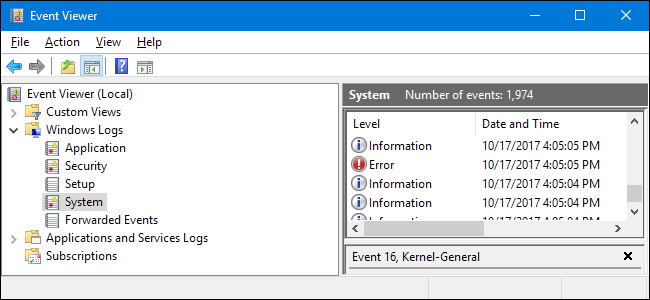
If you don’t know to to access your WEV then click the link below,
2. Missing DLL Files
Another standard system issue — again, with Windows-based operating systems — is a DLL (Dynamic-Link Library) error. This means a DLL file is either missing or corrupt. Files ending with “.DLL” are dynamic link library files.
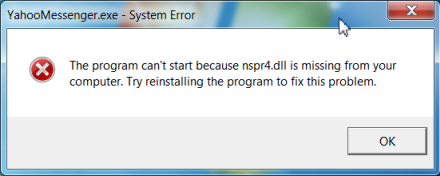
They hold many codes, procedures, and instructions for programs. They exist to tell the OS (Operating System) how to deal with certain apps. Several programs can also open them at once, improving memory conversion.
These are necessary system files, and when they’re missing or corrupt, bad things happen. This is unfortunate, and common because there are so many of them.
Replacing Missing DLL Files
A DLL file is essentially a unique function that developers can include with their applications. These files contain instructions for the computer and OS (operating system). If one of these files is missing, it can cause a lot of problems, especially since there are so many of them.
The best way to deal with missing DLL files is to rely on the System File Checker — an integrated Windows utility. It will scan the system files on your computer’s main hard drive and check to see if anything is missing or corrupted. It’s entirely possible for files to exist, but they might become corrupted over time. This can even happen if a hard drive is starting to fail.
The System File Checker will scan all the necessary directories and will replace or repair files as needed.
3. Applications Running Slowly
When applications slow down or hang, it could be due to any number of causes. But the most common relates to processing power and memory.
Computer memory — or random access memory — is used to store data temporarily while programs are running. The recommended amount for Windows users is 2GB or more, but a higher number is ideal. In fact, the more memory you have, the more programs you can run concurrently.
RAM doesn’t necessarily speed up a computer, but it can make applications and programs run better. So, yes, it’s commonly associated with performance and speed.
Dealing with Applications Running Slowly
A computer slowdown that causes apps to run poorly is extremely common. However, this is not an easy fix because there are so many factors that could be contributing to the slowdown.
First, you need to pinpoint what is causing the slowdown. The best way to do this is to duplicate the problem by shutting everything down and opening apps and processes one by one.
Open the Windows Task Manager by holding CTRL+ALT+delete and then choosing the related option. The Task Manager windows will appear. Make sure you are looking at the “processes” tab. Here, you can see all the apps that are currently running on your computer.

Start shutting down the apps you have started — or even some that have automatically started — but do not close any system intensive tasks. You’ll know right away if something is system intensive because an error window will appear asking if you really want to close that process. Obviously, when that happens, you’ll want to refrain from doing so.
Once you are confident, all the user apps are no longer running. Open your apps and tools one by one and check to see if there’s slowdown. This will allow you to find the culprit.
4. Malware
Malware is a type of software that can damage or disable computers and related systems. It has to be installed on a computer before it can cause problems. However, this can happen much more quickly than you think.
For example, just downloading a file from a website could result in malware on your computer. Once opened, it can damage files, and it can even slow down your computer by using up valuable resources.
Remove Malware
The best way to deal with malware — and prevent it — is to keep a malware tool on your computer and updated at all times. Keep in mind malware tools are separate from virus software. Sometimes a security suite will include tools that can screen for viruses and malware, but they are not the same thing.
Malware can often hold your computer hostage — this is also called ransomware — or slow it down by using up system resources. Spyware is also a problem, which is similar to malware except it collects sensitive information about you like bank account numbers, passwords and more. Malware, spyware, and viruses need to be dealt with immediately if and when you encounter them.
One of the best malware tools you can find is MalwareBytes Antimalware. There is both a free and premium version, though the features do differ.
5. Internet or Network Connectivity Issues
Internet or network connectivity issues can stem from many problems. First, there could be something wrong with your ISP, or internet service provider. Then, there are DNS servers you must connect to, which can also encounter issues. Finally, there’s your local hardware, which includes your router, computer and network software.
Luckily, Windows has a troubleshooting tool that can help identify network connection issues.
Troubleshooting Internet or Network Connectivity Issues
Another common problem that can cause a lot of headaches is internet connectivity. This can be an issue with your ISP, locally with your router and other hardware, or even software related with your computer. Sometimes even just restarting Windows can fix a problem. You can also use the Windows network diagnostic tool to check for local problems, like driver or wireless card failures.
If you want to check your internet speeds, you can use a tool like Speedtest.net.
6. Hard Drive Failure
A hard drive failure can lead to serious problems. The good news is that hard drives are easily replaceable. The bad news is that the data stored on said hard drive can become corrupt or lost forever.
This isn’t a big deal if you’re talking about program files that can be easily recovered. But when it comes to personal documents, photos, and important data it’s a huge problem. This is all data you can’t easily duplicate.
It’s recommended that you keep backups of your most important files. A hard drive can fail at any time, and it can happen with both old and new drives.
How to Deal With Hard Drive Failure
Unfortunately, hard drive failure is bound to happen eventually. As drives are used to read, write and erase files, the components inside wear down. The worst part is that there’s never usually a way to tell when it’s going to happen. Yes, you can run diagnostics on a failing drive and see signs, but when they appear, the drive could die right then and there, or it could still have months of use left.
When a hard drive fails, the only way to fix the problem is to have it replaced. You can do this yourself by buying and installing a new one, or you can take your computer to a shop — but that will be much more expensive.
The trick is to make sure your personal data is always backed up. You can do this by regularly copying or backing up files to an external or alternate hard drive. That way when the one you’re using fails, you still have the backup data to moved to your new drive.
If you do not create backups — or even don’t perform them regularly — there’s a real possibility you will lose valuable data if and when a drive fails. That can include important documents, passwords and accounts, photos, videos, media content, game saves and more.
7. Frozen Screen
During a severe failure — usually related to hardware — a computer can freeze or lock up. But this can also happen due to software problems, too, so never rule it out.
Most of the time, you can remedy this by opening the Windows task manager and force-closing the problematic application. Other times, the computer will lock up completely, and the only way to fix it is to reboot the machine.
Bypass a Frozen Screen
If the screen freezes, there’s only one thing you can do. You should immediately press CTRL+ALT+Delete and choose the “Task Manager” option if a menu appears. If it does, simply close the app or process that is frozen. If that option doesn’t work, then you’ll need to power cycle your computer.
This shouldn’t be happening often. If it is, it’s generally a sign of more severe hardware issues like failing components or overheating.
8. Strange Noises
Computers are never silent. At any given time, multiple functions take place that can cause noise. Mechanical hard drives and optical disk drives, for instance, make a distinct noise when powering up and when they’re in use. Cooling fans can also make noise as they spin. Graphics cards or GPU’s also have a fan that turns as they heat up.
Many of these components can make strange noises as they fail or begin to age.
Remedy Strange Noises
To deal with strange noises, you first have to isolate the problem. Figure out what hardware component is making the noise, if possible. Then run a diagnostic tool or simply replace the hardware.
9. Overheating
As power flows through the parts inside a computer are used, they heat up. It’s natural. This includes the CPU, hard drives, graphics cards, the power supply, external and internal drives and even the motherboard.
Some of the components can operate fine under a little warmth. When the heat inside a computer grows too high, it can cause serious failures, and it can even damage components. That’s exactly why a processor has its own cooling fan. The same applies to a graphics card or power supply. These components need to stay within a reasonable temperature range.
Fix Overheating Problems
The best way to deal with an overheating issue is to monitor the temperature inside your computer case or chassis and then take action. If the CPU or processor is overheating, you likely need to reseat the chip by coating it with new thermal paste and installing a new fan. If it’s the GPU or graphics card, you’ll likely need to replace the card — but in some rare cases, you can have it repaired or sent back to the manufacturer for a replacement.
If the temperature inside the case is getting too hot and it’s causing everything to lock up — which is not as common but still happens — then you’ll want to install case fans inside the chassis. You can also rearrange components and hardware inside the case, so there’s enough space for air to flow in and out.
You can use a tool like Open Hardware Monitor to check the temperature of components inside your computer.
10. Applications Won’t Install
There are many reasons why an application might not install on your computer. The most likely of which is that your computer and its software are not compatible with said application.
There are minimum system requirements to run everything from a simple program to a hardware-intensive game. If your computer does not meet these needs, you can experience a slowdown, and sometimes the app won’t even run.

Other issues that can prevent installation are hardware failures, storage space, and missing files.
Dealing with Applications Not Installing
If an application or piece of software is not installing on your computer, it typically means one of two things. Either the application is not compatible with your particular operating system, or the software has requirements your computer does not meet.
Always compare the minimum system requirements necessary to run software with the specs of your computer. If you don’t meet those requirements, then you simply cannot run the program without upgrading. This is rare, but it can happen. Most of the time the software will still run, but it will do so poorly. There is the off-chance that it won’t finish the installation process, however.
In the first case — where software is not compatible with your OS version — there’s not much you can do. You can try and look for a compatible version of the software you want to run, or you can look for an alternative.
11. Computer Suddenly Shuts Off or Restarts
There’s nothing worse than your computer restarting in the middle of a video game or your work. In addition to having to wait for the computer to boot back up, you might lose any progress you’ve made in the meantime. Sudden reboots or shutdowns can have a number of different hardware or software causes. If you’re running a Windows operating system, an automatic Windows Update could be the culprit. These updates are supposed to warn you before they reboot but if you don’t see the notification, they could catch you unaware.
If you’re playing a new video game and the computer shuts off, it could be a problem with your power supply — specifically, it might not have enough power to keep the computer running under that load.
Fixing Sudden Shut Off or Restarts
https://www.computerhope.com/issues/ch000689.htm
12. Windows Wont Boot
1.Download Easy Recovery Essentials. Make sure to note your Windows version (XP, Vista, 7 or 8) before you download EasyRE. This guide can help you identify what version of Windows you have installed.
2.Burn the image. Follow these instructions on how to burn the bootable ISO image very carefully, as making a bootable CD can be tricky! Alternatively, these instructions explain how to create a bootable EasyRE recovery USB stick/drive.
3.Boot up your PC from the Easy Recovery Essentials CD or USB you created.
4.Choose “Automated Repair” option and click Continue.

5.After EasyRE scans your computer’s drives, identify and select the drive letter for your Windows installation from the list, and then click on the Automated Repair button to begin.

6.Easy Recovery Essentials will start analyzing the selected drive for problems. EasyRE will test for and attempt to automatically correct errors with the disk, partition, bootsector, filesystem, bootloader, and registry.

7.Once the process is complete, EasyRE will report its findings. Click on the Restart button to reboot your PC and test the changes.
8.Your PC begins to boot again:

13. Dysfunctional USB Port
When your USB ports suddenly stop working, the problem can always be tracked down to either a hardware or software failure. Some of these problems are the same across both Windows and Mac, while others are unique to just one or the other.
Uninstall USB Port
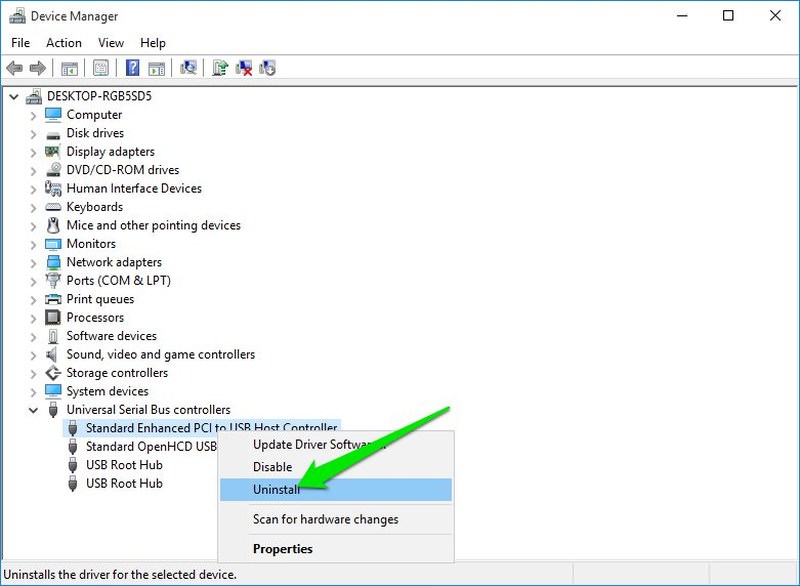
1.Press Windows + R keys and enter devmgmt.msc in the Run dialog to open the Device Manager.
2.Here, expand Universal Serial Bus controllers option.
3.Now right-click the entry USB Host Controller and then click on Uninstall.
4.Repeat this for all entries with USB Host Controller to uninstall drivers for all the USB ports.
5.Once deleted, restart the PC and Windows will automatically reinstall the drivers and fix any driver issues.
14. Noisy hard drive
If you hear clicking or grinding sound from the hard drive, then it might be time to get a new one. Hard drives have a limited lifespan and loud sounds are the main sign of a near hard drive failure.
You should back up all your data immediately and try to get another hard disk before it fails on you.
Checking Your Hard Drive
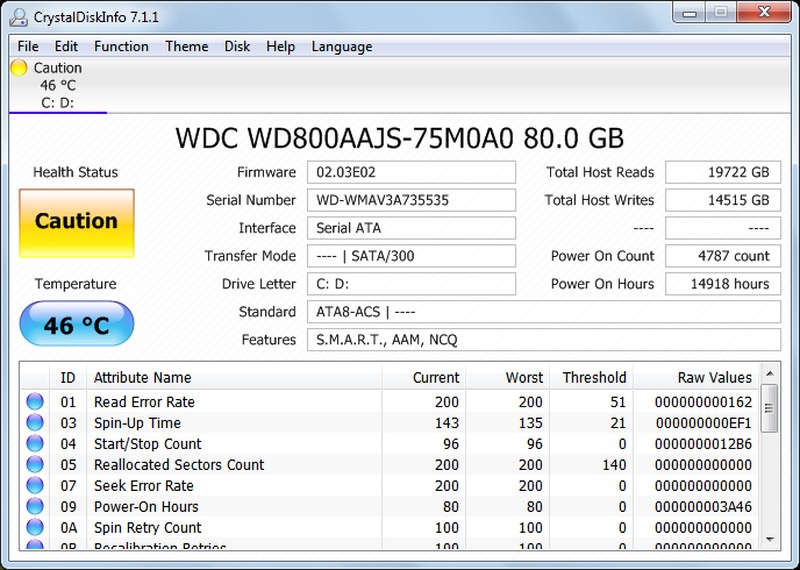
You can use CrystalDiskInfo hard drive monitoring tool to check the health of your hard drive. The tool will tell you the current health of the hard drive with signs like “Good”, “Caution” or “Bad”.
15. Damaged and corrupted files
A computer file is just a set of data, organized in a way that programs can open and read it. If parts of the file’s data are disorganized or missing, then it becomes unreadable — in other words, corrupted or damaged.

Corruption can occur in several ways. Maybe the file was created by buggy software that wrote the file incorrectly. Sometimes a program needs to keep a file open during use, and if the program crashes, the file could get jumbled. Viruses can also damage files.
Unfortunately, repairing a corrupted or damaged file is difficult. The chance of success depends on how flexible the file format is, how much data is missing or muddled, and how smart the recovery software is.
Repairing Damaged and Corrupted File
There are many types of file you can store in your computer like apps, pictures, videos, excel etc. So, That means there are many ways and tools in repairing corrupted files.
Click the link below to try and see the different tools you use when dealing with this kind of problem,
https://www.makeuseof.com/tag/best-tools-repair-corrupted-damaged-files-windows/
References
- https://schooledbyscience.com/common-computer-problems-part-1/
- https://schooledbyscience.com/common-computer-problems-part-2-fixing/
- https://www.computerhope.com/issues/ch000689.htm
- https://www.howtogeek.com/123646/htg-explains-what-the-windows-event-viewer-is-and-how-you-can-use-it/
- https://neosmart.net/wiki/windows-wont-start/
- https://www.makeuseof.com/tag/best-tools-repair-corrupted-damaged-files-windows/
 heywire.home.blog